
Tracking maintenance work using Excel is not ideal, but it can be done with a good template until you find a better solution. monitor your maintenance work orders.
To make things easier, we’ve created a free work order tracking template you can download and customize in Excel or Google Sheets.
Below, you’ll find the downloadable template, a breakdown of its features, and step-by-step instructions for using it to organize and
Download the work order tracker
Our template includes three worksheets:
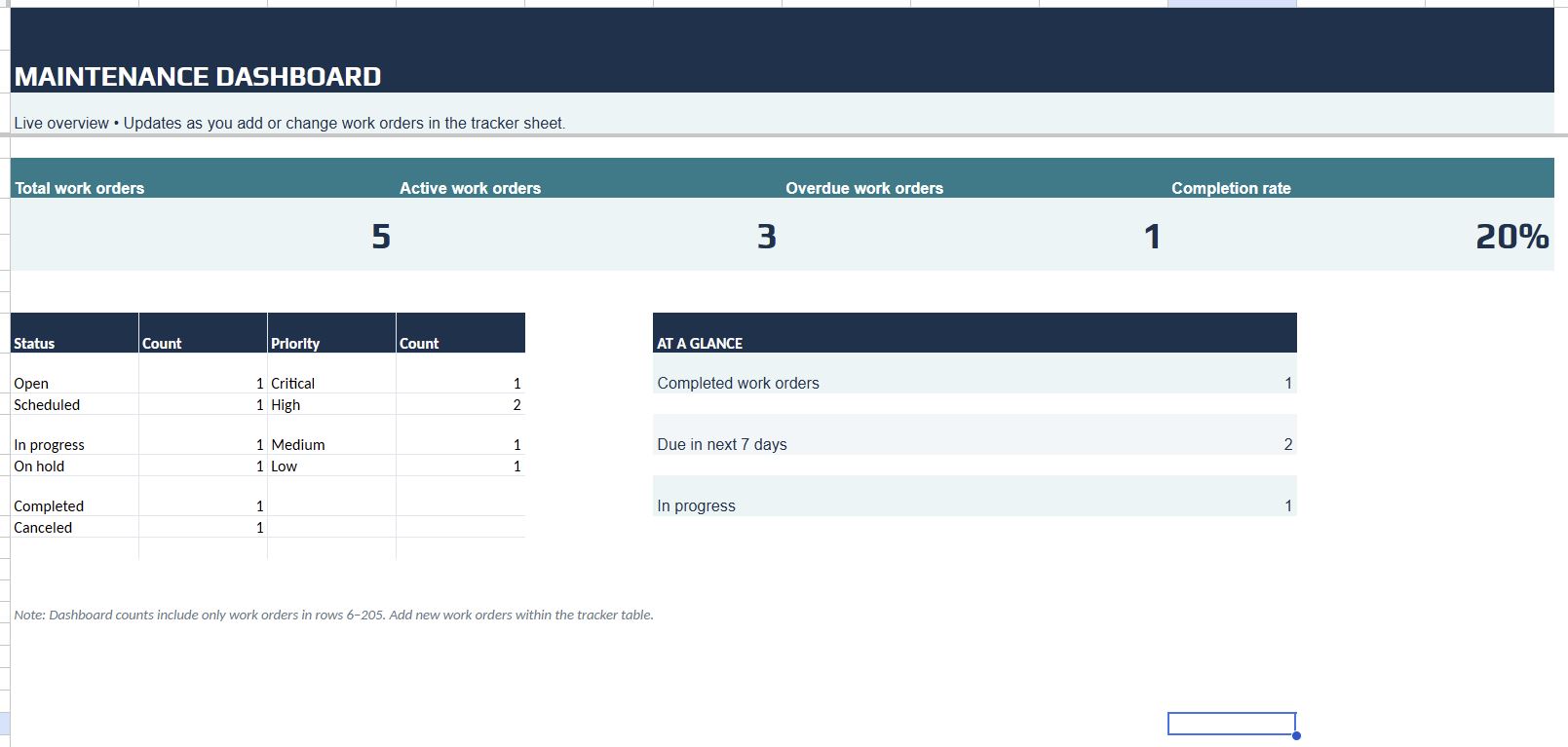
- Maintenance dashboard: An automatically updated overview of open, completed, and overdue work orders, completion rates, and other useful metrics.
- Work order tracker: A centralized table for recording work orders, assigning responsibilities, tracking progress, and monitoring deadlines.
- Instructions and drop-down lists: A quick-start guide with customizable lists for work order types, priorities, statuses, and other drop-down fields.
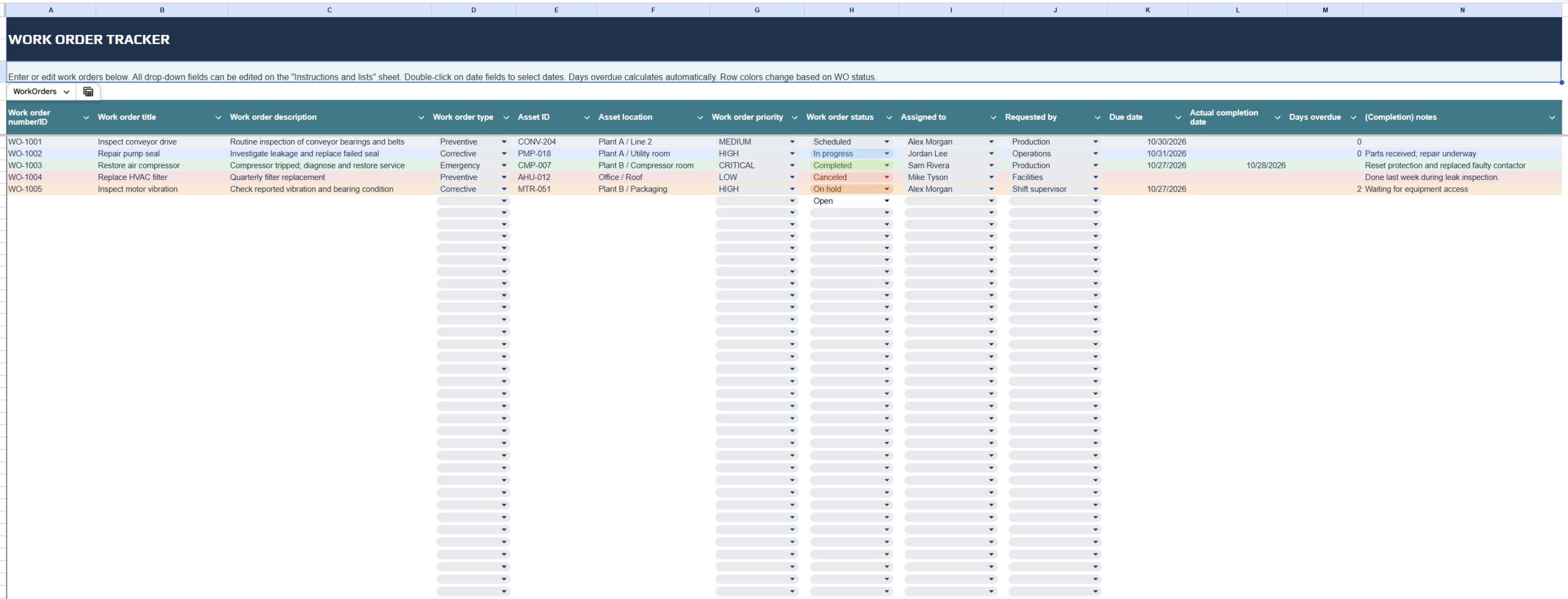
We’ve also included sample work orders to show you how everything works, which you can also see in the screenshot above.
Access the templates here:
- EXCEL FILE DOWNLOAD
- GOOGLE SHEETS LINK (you will be automatically prompted to make a copy so we can keep our original document intact)
Both versions are designed to help you manage the same essential work order information. The main difference is how you access and collaborate on the file.
Excel is ideal if you prefer working with locally stored files, need offline access, or already use Microsoft Excel for maintenance tracking.
Google Sheets is a good option for teams that want to access the tracker from different devices, collaborate on work orders in real time, and share updates without emailing spreadsheet versions back and forth. You have fewer versioning issues, but you need to carefully manage access permissions to the document (who can view/edit/comment).
TIP: This template is great for WO scheduling and tracking. If most of your work is proactive, check out our free preventive maintenance schedule template.
How to use this Excel work order tracking template
The main worksheet contains 14 columns covering essential work order information, from task descriptions and asset details to assignments, deadlines, and completion notes.
You can use the template as provided or customize individual fields to better reflect your maintenance processes.
Here is what we included, why, and how you can further customize it. Also, keep in mind that nothing is preventing you from adding additional columns to the table if needed.
| Column | Purpose and how to use it | Additional tips |
|---|---|---|
| Work order number/ID | Assign a unique identifier to each maintenance work order for easier tracking and referencing. | Use your existing numbering convention or the work order IDs generated by your CMMS/EAM software. |
| Work order title | Provide a short, descriptive name for the task, such as “Replace conveyor belt.” | Keep titles concise and consistent. |
| Work order description | Describe the maintenance issue, required work, or specific instructions for the technician. | Expand the column for longer descriptions or remove it if you track detailed instructions elsewhere. |
| Work order type | Categorize work as preventive, corrective, or emergency maintenance. | Update the dropdown list to include additional categories, such as condition-based, predictive maintenance, or inspections. |
| Asset ID | Identify the equipment or asset associated with the work order. | Use the same asset IDs as your CMMS or asset register. |
| Asset location | Specify where the asset is located, such as a facility, production line, or equipment room. | Replace free-text entries with a dropdown if you have a fixed list of facilities or locations. |
| Work order priority | Indicate the urgency of the work using scale like Critical, High, Medium, Low. | Adjust the priority levels to match your organization’s classification system. |
| Work order status | Track progress using Open, Scheduled, In progress, On hold, Completed, or Canceled. | Customize the dropdown options and associated row colors to match your workflow. |
| Assigned to | Identify the technician or employee responsible for the work order. | Edit the dropdown list to include your maintenance personnel, teams, or shifts. |
| Requested by | Record the person or department that submitted the maintenance request. | Update the dropdown with relevant employees, departments, or teams. Remove the column if you do not need it. |
| Due date | Specify when the work order should be completed. | Adjust the date format if needed. This field is also used to calculate overdue days. |
| Actual completion date | Record when the maintenance task was finished. | Keep this as a date field to support completion-time analysis. |
| Days overdue | Automatically calculate how many calendar days an unfinished work order is past its due date. | Keep the existing formula or modify it to calculate working days instead. |
| (Completion) notes | Document completed work, observations, outstanding issues, reasons for delays, or recommended follow-up actions. | Rename or expand this field based on your documentation requirements. |
Tips for getting the most out of this work order tracker template
Once you’ve downloaded the template, follow these steps to set it up and start tracking work orders:
- Step 1: Customize the dropdown lists. Open the Instructions and lists worksheet and update the available options, particularly the Assigned to and Requested by lists, to reflect your maintenance team.
- Step 2: Review the sample work orders. The tracker includes five example entries. Review how they are structured, then replace them with your own work orders.
- Step 3: Enter and assign new work orders. Add each work order as a separate row, assign a unique ID, select its priority and type, and identify the person responsible for completing it.
- Step 4: Set deadlines and update statuses. Enter the relevant dates and update each work order’s status as it progresses. The template automatically colors rows based on their status, making it easier to distinguish scheduled, ongoing, on-hold, completed, and canceled tasks.
- Step 5: Monitor overdue work orders. The Days overdue column automatically calculates how many days an unfinished work order is past its due date. Use the column filter to identify overdue tasks and prioritize follow-up actions.
- Step 6: Review the maintenance dashboard. Use the dashboard to monitor total, active, overdue, and completed work orders. You can also track completion rates, upcoming deadlines, and the distribution of work orders by status and priority.
- Step 7: Keep the tracker updated. Establish a consistent routine for updating statuses, dates, and completion notes. Accurate information is essential for making the dashboard useful.
The included workbook supports up to 200 work orders with its current formulas and dashboard ranges. You can easily extend these ranges if you need to track more.
While spreadsheets can be effective for basic work order tracking, they become harder to maintain as the number of assets, technicians, and maintenance tasks increases. At that point, you might want to look at a dedicated digital tool.
Have a CMMS but still struggle with scheduling?
You’re not alone. Many maintenance teams invest in a CMMS, but still rely on Excel to build and manage their weekly maintenance schedules.
Why? Because many CMMS and EAM platforms offer standard scheduling functionality that can feel too rigid, complicated, or cumbersome for day-to-day scheduling.
That’s exactly why we built Sockeye.
Sockeye is an easy-to-use maintenance scheduling bolt-on that integrates with your existing CMMS or EAM. It helps you build balanced weekly schedules, assign work based on actual labor availability, make quick adjustments using drag-and-drop, and coordinate teams based on one live, easily shareable schedule.
Here’s a 90-second video showing how it works:
If you are still using spreadsheets while having access to a CMMS or an EAM, we can help you get rid of these manual scheduling workarounds.
Book a quick demo to see how Sockeye can simplify and automate maintenance scheduling at your plant. We offer a free trial where you can get a proof of concept using your own data before spending a single cent.
